 Hidy Vault
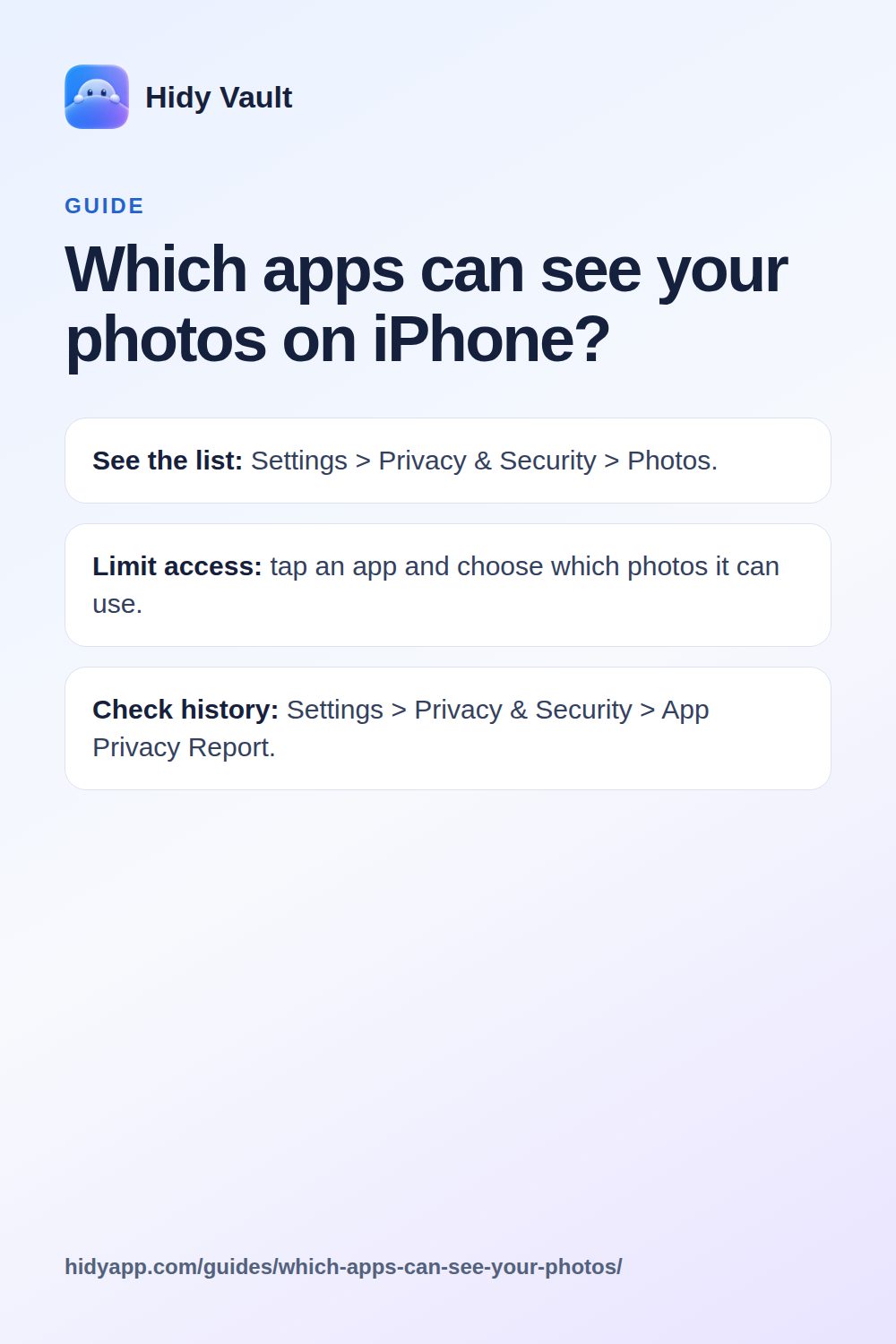
Which apps can see your photos on iPhone?
Go to Settings > Privacy & Security > Photos to see every app that has asked for photo access. Tap an app to change what it can see. The App Privacy Report shows when apps used that access in the past 7 days.
- See the list: Settings > Privacy & Security > Photos.
- Limit access: tap an app and choose which photos it can use.
- Check history: Settings > Privacy & Security > App Privacy Report.
How do I see which apps can access my photos?
Open Settings > Privacy & Security > Photos. You will see a list of apps that have asked for permission to access your photos. Tap any app to see or change its access. An app appears in this list only after it asks for permission.
This list is the starting point. It shows apps that requested access to your Photos library. It does not show apps that received a photo through a share or upload action.
What do the Photos access choices mean?
When an app asks for photo access, you choose what it can see. Apple documents that you can change an app's Photos access later, including allowing or removing access. The app can use Photos only if permission is granted.
If an app has limited access, you can change which photos it can access in that app's Photos permission settings. Apple documents this control but does not state a fixed maximum number of selected photos.
To review or change an app's access, go to Settings > Privacy & Security > Photos and tap the app. The options you see depend on the app and the iOS version.
Hidy Vault keeps photos, videos and documents in encrypted vaults that open only with a pattern you draw. No account, no Hidy server. Free for 3 vaults.
How can I check when apps used my photos?
Go to Settings > Privacy & Security > App Privacy Report and turn on App Privacy Report. The report shows how many times and when apps accessed privacy-sensitive data during the past 7 days. That includes photo access.
The report is a history, not a list of individual photos. It helps you spot an app that reads your photos more often than you expect.
Is camera access the same as photo access?
No. Camera access is separate. Go to Settings > Privacy & Security > Camera to review or change which apps can use the camera. A green indicator appears whenever an app uses the camera.
An app with camera access can take new photos. That is different from reading photos already in your library.
What about apps that are not in the Photos list?
Apple notes that items stored outside the Photos Library may still be accessible to other apps. The Photos permission list covers apps that request access to your Photos data. It does not identify every app that might receive an individual photo through a share or upload action.
So the list is a useful check, but it is not a complete map of every photo that leaves your library.
How do I limit what an app can see?
- Open Settings > Privacy & Security > Photos.
- Tap the app you want to change.
- Choose the access level you want. If the app has limited access, you can change which photos it can access.
- To remove access, choose the option that removes the app's access to Photos.
Repeat for each app. Check the list again after you install new apps, since an app appears only after it asks.
What iOS cannot do
iOS can show you which apps asked for photo access and let you limit that access. It cannot stop an app from receiving a photo you share with it. It also cannot show you every photo an app has received through a share or upload.
The App Privacy Report shows access counts and timing, not the content of the photos. And the Photos list does not cover items stored outside the Photos Library.
If you want a separate space for photos that apps with library access cannot read, an encrypted vault is one option. Hidy Vault stores photos encrypted inside the app. Imported photos are encrypted with AES-256-GCM, and the vault locks when the app goes to the background.
Limits of Hidy Vault
- Hidy is not yet on the App Store. It is coming to the App Store.
- There is no Face ID or Touch ID unlock for Hidy itself. You unlock by drawing a pattern on a 5×5 grid.
- Hidy cannot reset a forgotten pattern. Each vault can have a 12-word recovery phrase to reopen it.
- An open vault is readable on screen. There is no independent cryptographic audit yet.
- Sharing a file out of Hidy gives the recipient a readable copy.
- Someone examining the app's storage can see approximate file sizes and the number of vault folders, not contents or names.
Quick reference
| What you want to check | Where to go |
|---|---|
| Apps that asked for photo access | Settings > Privacy & Security > Photos |
| When apps used photo access | Settings > Privacy & Security > App Privacy Report |
| Apps that can use the camera | Settings > Privacy & Security > Camera |
Frequently asked questions
Does an app appear in the Photos list before it asks for permission?
No. An app appears only after it asks for permission to access your photos.
Can I limit an app to just a few photos?
Yes. When an app has limited access, you can change which photos it can access in that app's Photos permission settings.
Does the App Privacy Report show which photos an app opened?
No. It shows how many times and when apps accessed privacy-sensitive data, including photos, in the past 7 days. It does not list the individual photos.
Is camera access part of Photos access?
No. Camera access is separate. Go to Settings > Privacy & Security > Camera to review or change which apps can use the camera.
Does this list cover every way an app can get a photo?
No. Apple's permission list covers apps that request access to your Photos data. It does not identify every app that might receive a photo through a share or upload action.