 Hidy Vault
How to stop iCloud Photos syncing to other devices
To stop this iPhone from syncing, go to Settings > [your name] > iCloud > Photos and turn off Sync this iPhone. That affects only this iPhone. Turning iCloud Photos off for the whole Apple Account is a separate, bigger step.
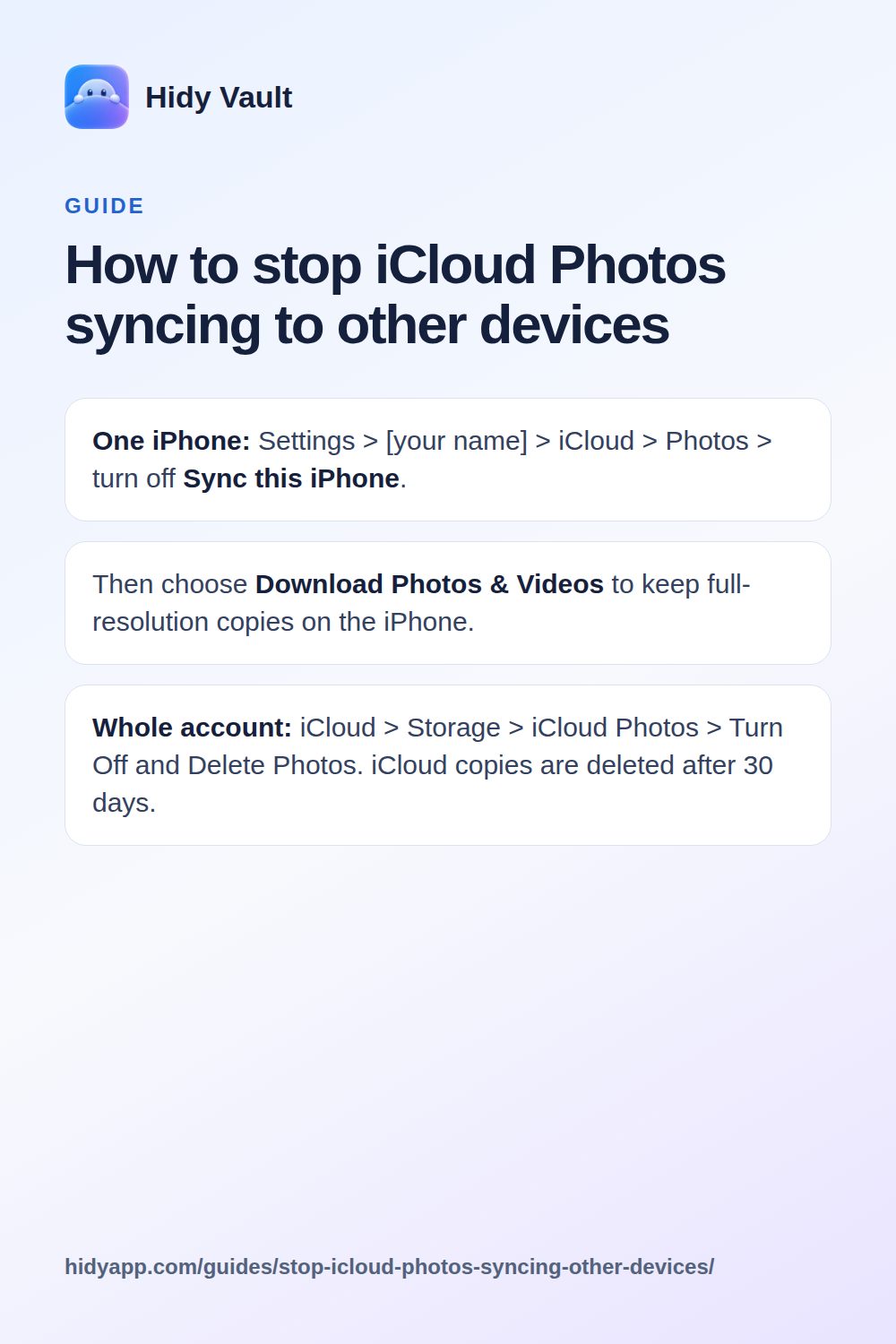
- One iPhone: Settings > [your name] > iCloud > Photos > turn off Sync this iPhone.
- Then choose Download Photos & Videos to keep full-resolution copies on the iPhone.
- Whole account: iCloud > Storage > iCloud Photos > Turn Off and Delete Photos. iCloud copies are deleted after 30 days.
What do you actually want to stop?
There are two different jobs here. One is stopping this iPhone from syncing with iCloud Photos. The other is turning iCloud Photos off for the whole Apple Account. They have different effects, so pick the one that matches what you need.
Apple's iCloud Photos keeps every photo and video in iCloud. Changes on one device show up on the others. If you want that to stop, you have to change a setting. There is no single switch that quietly freezes one device.
Stop syncing on this iPhone only
This is the smaller step. It affects only the iPhone in your hand.
- Open Settings.
- Tap your name at the top.
- Tap iCloud, then Photos.
- Turn off Sync this iPhone.
After that, new photos, edits and deletions on this iPhone no longer sync with your other devices. Your other devices keep using iCloud Photos as before. Apple says turning off Sync this iPhone affects only that device's syncing.
You will be asked what to do with the photos already on the iPhone. Choose Download Photos & Videos if you want full-resolution copies kept on the device. The iPhone needs enough storage for the originals.
If you choose Remove from iPhone instead, optimized versions are not original resolution. Download originals first if you need them at full size.
Hidy Vault keeps photos, videos and documents in encrypted vaults that open only with a pattern you draw. No account, no Hidy server. Free for 3 vaults.
Stop iCloud Photos for the whole Apple Account
This is the bigger step. It affects every device that uses that iCloud Photos library.
- Open Settings.
- Tap your name, then iCloud.
- Tap Storage, then iCloud Photos.
- Tap Turn Off and Delete Photos.
Apple says photos and videos stored in iCloud are deleted 30 days after you stop the service. During those 30 days, Undo Delete is available. If you are not sure, download what you need before you take this step.
This is not a per-device switch. It ends iCloud Photos for the account. Read the on-screen warning before you confirm.
Can you just pause syncing?
In the Photos app, tap your profile button, then Pause. In iOS 18 this pauses syncing. Apple does not document it as turning iCloud Photos off. Treat it as a temporary hold, not a permanent stop.
Which option should you pick?
| Goal | Setting | Scope |
|---|---|---|
| This iPhone stops syncing | Sync this iPhone off | This device only |
| Keep full-resolution copies on the iPhone | Download Photos & Videos | This device only |
| End iCloud Photos for the account | Turn Off and Delete Photos | All devices on the account |
| Temporary hold | Pause in Photos | This device, temporary |
If your concern is one person seeing new photos on a shared device, the per-device switch is usually enough. If your concern is the account itself, the account-wide switch is the one that matters.
What this does not fix
Turning off syncing is not the same as hiding a photo. Apple's Hidden album is a separate feature. Hiding a photo moves it out of the Library, other albums and the Photos widget. On iOS 16 and later the Hidden album is locked by default. That is a different control from iCloud Photos syncing.
If you want photos off the synced library entirely, a vault app is another approach. Hidy Vault stores files in an encrypted vault on the iPhone. It is not a Photos setting, and it does not change your iCloud Photos configuration.
Limits and honest notes
- Turning off Sync this iPhone does not delete photos from iCloud or from your other devices. It stops this iPhone from syncing.
- Turning off iCloud Photos for the account starts a 30-day deletion window for photos stored in iCloud. Undo Delete is available during that window.
- Pause is documented as a pause, not as turning iCloud Photos off.
- Downloading originals needs free storage on the iPhone.
- This guide covers Apple's iCloud Photos settings only. It does not describe what any other app does with your photos.
Check the result on a second device. Take a photo on the iPhone after the change and see whether it appears elsewhere. That is the simplest way to confirm the setting did what you expected.
If the photos are in a family library instead, see how to turn off Shared Library on iPhone.
Frequently asked questions
Does turning off Sync this iPhone delete photos from my other devices?
No. Apple says turning off Sync this iPhone stops this iPhone from syncing with iCloud Photos. Your other devices keep syncing with iCloud Photos as before.
What happens to photos already in iCloud when I turn off iCloud Photos for the account?
Apple says photos and videos stored in iCloud are deleted 30 days after you stop the service. During those 30 days you can use Undo Delete.
Can I pause syncing instead of turning it off?
In Photos, tap your profile button and then Pause. Apple documents this as pausing, not as turning iCloud Photos off.
Will my photos stay on this iPhone after I turn off Sync this iPhone?
They stay on the iPhone. If you choose Remove from iPhone, optimized versions are not full resolution, so download originals first if you need them.